How to choose the best Microsoft Fabric Capacity?
Table of Contents
- Pay-As-You-Go vs. Reservation
- One or Many Capacities?
- Limit capacity size with billing for Apache Spark
- Right-Size Your Capacity
- Choose the Right Region
- OneLake Storage Pricing
- Summary
- 2. Should I choose Pay-As-You-Go or Reserved Capacity for Microsoft Fabric workloads?
- 3. How do I determine the right Microsoft Fabric SKU size for my organization?
- 4. What are the best strategies to optimize Microsoft Fabric costs while maintaining performance and compliance?
- 5. Can I split Microsoft Fabric Capacity between Development and Production environments?
Microsoft Fabric runs on a Capacity-based model. You purchase one (or more) Fabric capacities for your tenant(s) through the Azure portal, and that instantly unlocks all the Fabric features: Data Factory, Data Engineering, Data Warehouse, Data Science, Fabric SQL Database, Real-Time Analytics, Power BI, Copilot, and storage in OneLake.
The cost of Capacity depends on the SKU size (Stock-Keeping Unit – the actual compute power), the pricing model you choose, and the region. OneLake storage is billed separately, but the fees are minimal, you’ll find more details in the article linked below.
On paper, everything sounds pretty straightforward until you start asking the real questions:
- What’s the right strategy for sizing? Is one Capacity enough?
- Can I split Capacity between Development and Production environments?
- Which billing model should you choose: Pay-as-you-go or Reservation?
- What happens if my organization spans multiple countries or continents with different data-protection regulations?
- What SKU size should my organization choose?
If you’d like to find the answers to these questions, I invite you to read the article.
Pay-As-You-Go vs. Reservation
Fabric offers two purchasing models: Pay-As-You-Go (PAYG), billed hourly based on actual usage, and Reservation, which runs 24/7 for a full year and can deliver significant savings if you know you’ll be using Fabric continuously over the next 12 months.
The decision between PAYG and Reservation depends on a few key factors:
- Workload patterns throughout the day and month.
- How the capacity will be used (e.g. production, backup, or project-specific workloads).
- Cost optimization goals.
Leverage Reservations for predictable workloads
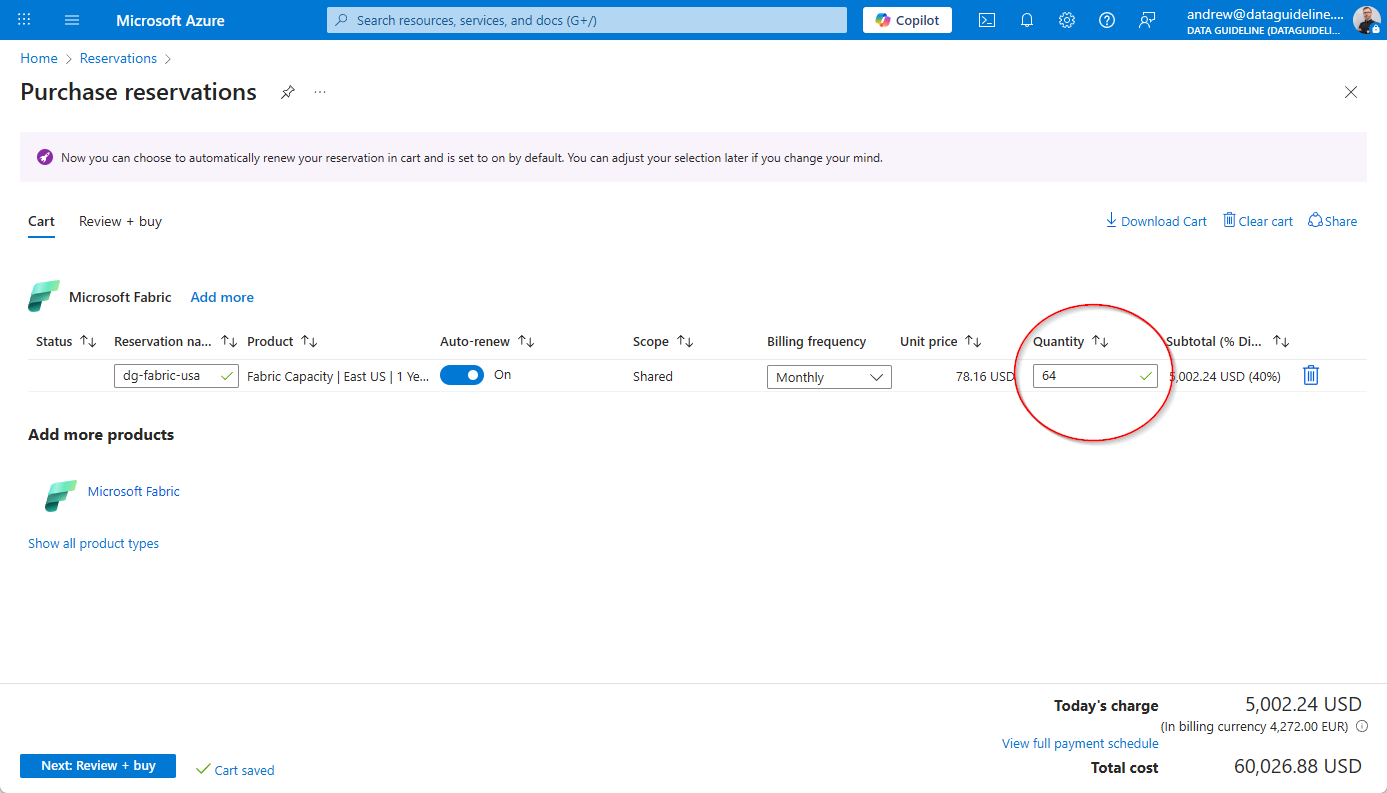
Reserved Capacity offer is an obvious choice – it can significantly reduce your costs if you require a 24/7 production environment. By purchasing a reservation, you commit to a specific Capacity tier for one or three years, and in return, you receive a discount of approximately 41% compared to standard Pay-As-You-Go pricing. This is the most effective strategy for environments with predictable, consistent usage patterns.
Azure portal Reservation page, where you can select the number of Capacity Units (CUs) to utilize
When to consider Reservation:
- Long-Term Adoption Strategy: If your organization plans to roll out Microsoft Fabric as a replacement for existing integration and analytics tools (such as SQL Server, SSIS, Synapse, Databricks, Tableau, etc.), a Reservation makes sense. It’s no longer just a PoC it’s a commitment to Fabric as the core analytics platform.
- Production Environments with Steady Usage: If your team is already consuming Power BI reports and has taken the first step by building a Fabric PoC with a Lakehouse or Data Warehouse, you can review your current capacity consumption and switch from PAYG to a well-sized Reservation model.
- High-Volume Data Processing: If you expect to move and transform large amounts of data, especially through Data Pipelines, Notebooks, or Dataflows, a Reservation helps cut costs when those workloads run at scale.
- Switching from P SKU to F SKU: If you currently run on a Power BI Premium (P1 or higher) SKU and plan to transition to Fabric capacity (F SKU), moving straight into a Reservation can deliver better cost efficiency and simplify licensing.
Fabric Reservation with different SKUs
When you make a Reservation in the Azure portal, you’re not locked into assigning all the purchased Capacity Units (CUs) to the same F SKU size. Within the pool of reserved CUs (the quantity shown in the screenshot above), you can spin up different F SKUs in various sizes. How they’re billed is explained below.
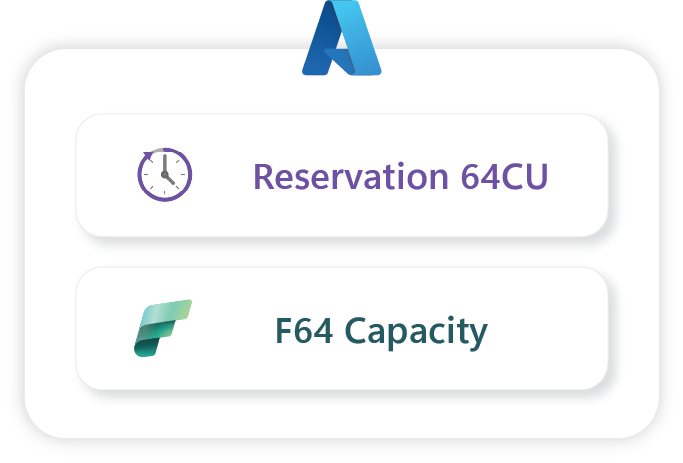
Scenario 1
In this example it’s straightforward: we reserve 64 CUs and allocate them all to a single F64 SKU. The cost is simply the price of 64 CUs in the chosen region.
Scenario 2
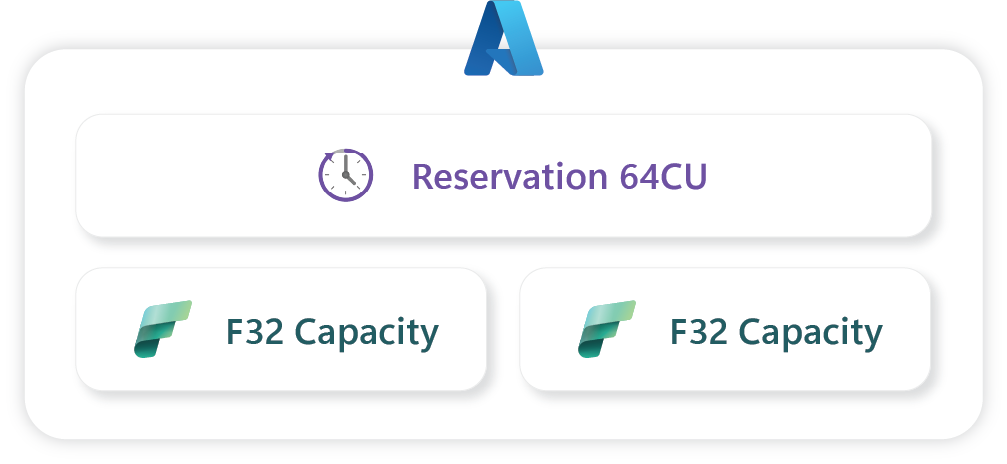
In the example below, we have a single Reservation for 64 CUs, but we split those units across two separate capacities – two F32 SKUs. Billing still applies to the full 64 CUs, based on the selected region.
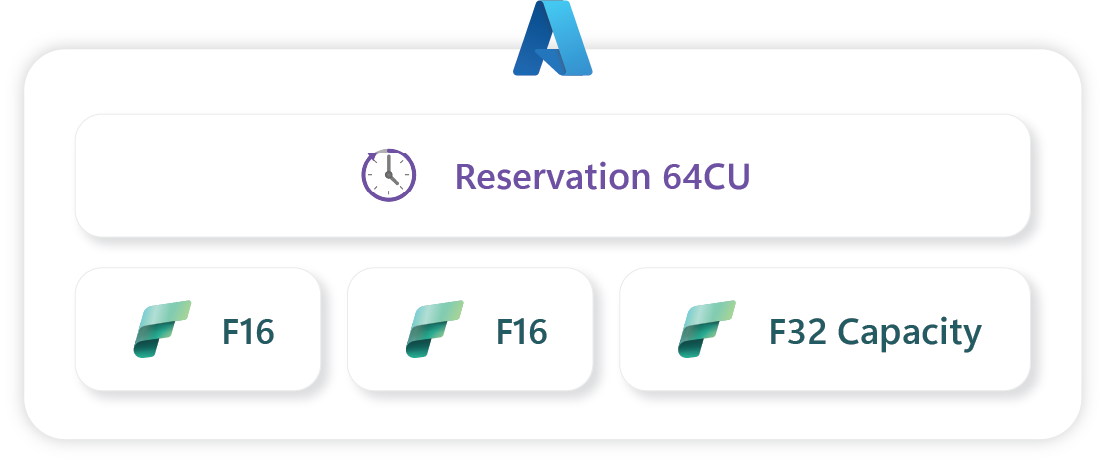
In this case, it’s the same setup as before, but the 64CUs are split across three separate capacities. The billing still applies to the full 64CUs, based on the region you selected.
Scenario 3
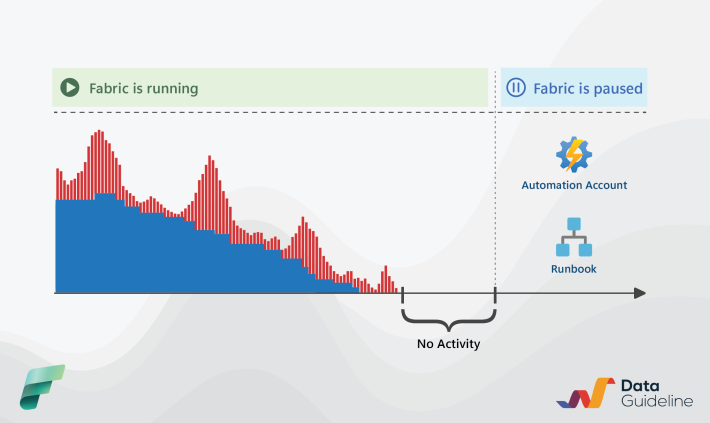
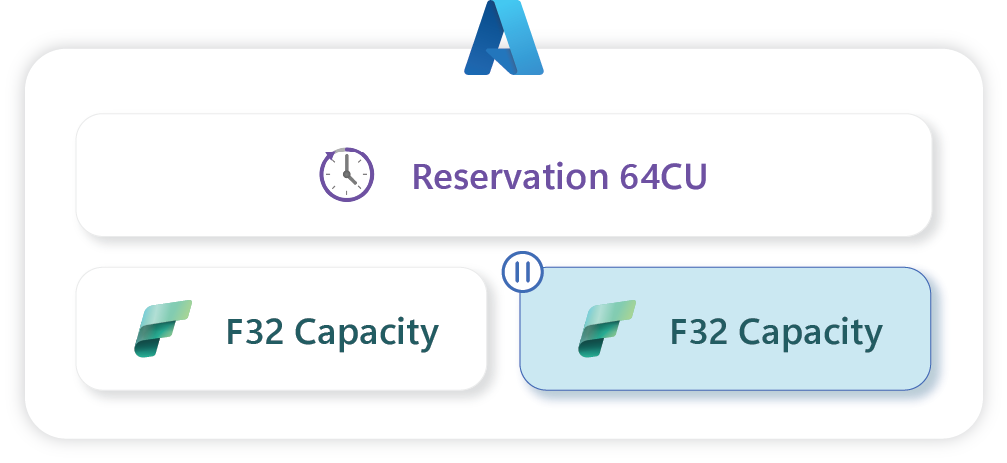
I didn’t mention this earlier, but every F SKU can be paused in the Azure portal. Once paused, you lose access to all Microsoft Fabric items running on that capacity.
For example, let’s say you have a 64CU Reservation split into two F32 SKUs. If you pause one of them, you’re still billed for the full 64CUs, regardless of the fact that one capacity isn’t running.
Scenario 4
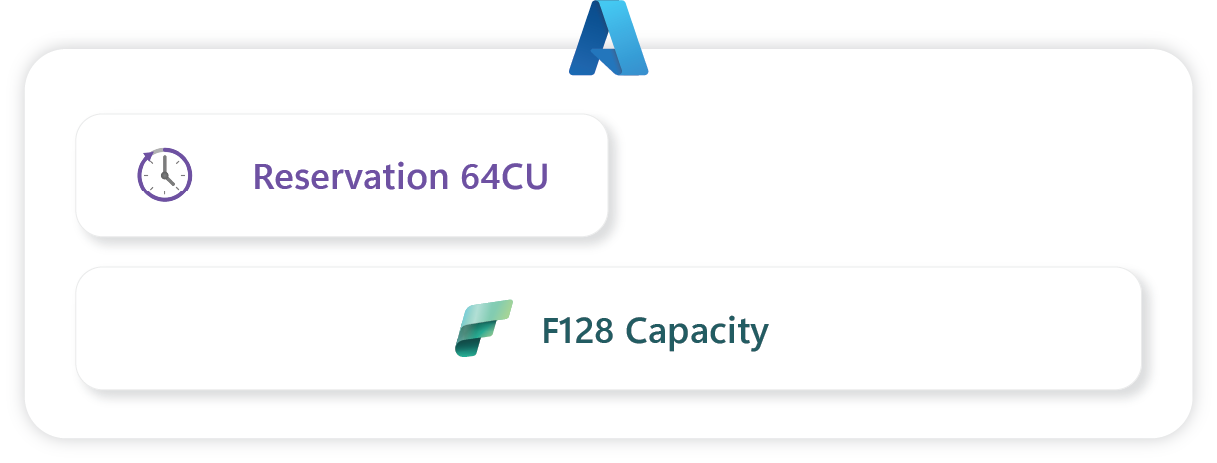
The following example assumes an organization initially ran on an F64 SKU, but due to capacity limits, scaled up to F128. In this scenario, the costs are split as follows: half of the F128 (equivalent to F64) is billed under the Reservation, while the additional F64 is billed under Pay-As-You-Go.
Leverage Pay-As-You-Go for flexible and unpredictable workloads
In the PAYG model, you’re billed hourly for the time your Microsoft Fabric capacity is running, based on the selected SKU and Azure region. There’s no annual or three-year commitment, you can stop using Fabric at any time. Capacity can be paused or resumed instantly from the Azure portal with a single click. Another advantage is the ability to scale SKUs up or down (for example, moving from F16 to F32) whenever needed. Microsoft bills PAYG monthly, based on actual usage. You’ll find a regional price breakdown in the article below.
When to Consider PAYG:
- Early Stage of Fabric Adoption: For proof-of-concept projects, PAYG lets you validate key questions: Does Fabric meet your business needs? Does the connector pull the right data? Does mirroring work as expected? What permissions are required? It also helps test whether the chosen SKU is sized correctly for your workloads in terms of processing times and resource saturation.
- Testing and Development Environments: If you already run production workloads on a Reserved Capacity, you can add a small PAYG capacity (for example, F2, F4, or F8) to support a new analytics project or handle development work. This way, production runs on Reservation while testing and side projects run on PAYG – protecting your production environment from resource saturation or availability issues.
- Fluctuating Workloads: If your organization experiences seasonal or daily spikes in usage, PAYG might be a good fit. For instance, you might keep an F8 running from 7:00 AM to 5:00 PM, then scale up to F32 at month-end when reporting activity peaks. Just make sure that any recurring data loads finish within your scheduled capacity windows and ultimately you are not paying more than a Reservation.
- Short-Term Projects: For pilot projects lasting only a few months – such as testing machine learning models – PAYG is ideal. You’re not locked into a year-long commitment, and you can scale the SKU up or down as needed.
- Rescue Capacity: If your Reservation is maxed out, you may hit throttling – essentially running out of compute headroom, which can cause errors like failed data refreshes or report access issues. In that case, you can spin up a “rescue” PAYG capacity (kept paused most of the time). When needed, simply move workspaces from Reservation to the PAYG capacity to finish processing.
Which pricing model to choose?
Below is a table summarizing the main differences between PAYG and Reservation models.
Feature |
PAYG |
Reservation |
|---|---|---|
Billing |
Billed hourly |
Billed monthly for a 1-year commitment |
Best for |
Development, testing or unpredictable workloads with idle periods. Can be used in production for some scenarios. |
Production workloads, running 24/7 |
Savings |
No commitment; pay only for what you use. Can be paused to stop charges completely. |
Committing to a 1-year term can yield a discount from 38% up to 54% – depending on region. |
Drawbacks |
Higher rates; manual management needed. |
Wasted costs if underutilized; commitment risk. |
More information about the pricing you can find here.
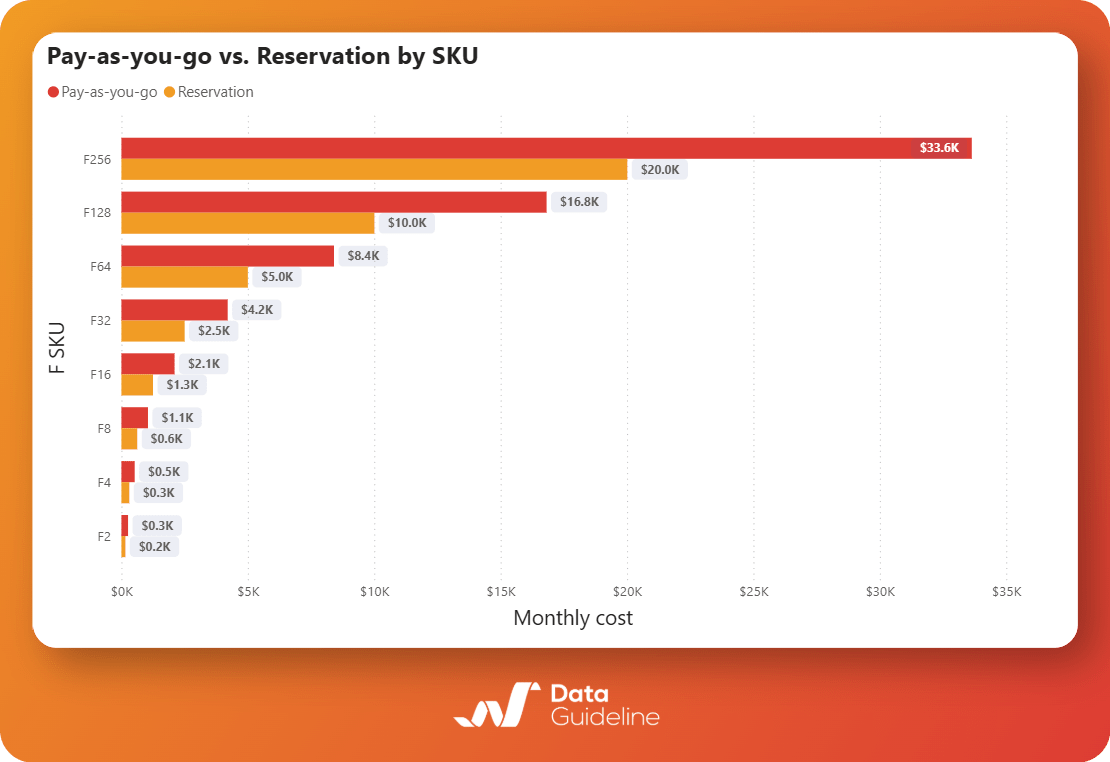
When it comes to PAYG Microsoft is counting whole month as 730h
Additionally, below you can find chart that shows cost comparison between PAYG and Reservation by SKU from F2 to F256. You can purchase up to F2048 SKU.
BONUS: Trial Capacity
Microsoft Fabric offers a free 60-day trial that lets organizations explore the platform’s capabilities without incurring any additional costs. To get started, go to https://app.fabric.microsoft.com, click your profile icon in the top-right corner, and select Start Fabric Trial Capacity.
Once activated, you’ll have access to an F64 SKU along with 1 TB of storage in OneLake. Nearly all features are enabled during the trial, but keep in mind that:
- Copilot and Trusted Workspace Access aren’t supported.
- Private Link is disabled.
- Region selection isn’t available – trial capacity is automatically created in your tenant’s home region.
- Only one trial capacity per user is allowed.
One or Many Capacities?
When you’re just starting out with Microsoft Fabric or if your organization isn’t that large, you’ll most likely begin with a single capacity. That’s perfectly fine for early adoption.
However, there are scenarios where it makes sense to split workloads across multiple F SKUs. Below are a few common examples, though in practice you’ll find many other combinations and approaches that fit specific needs.
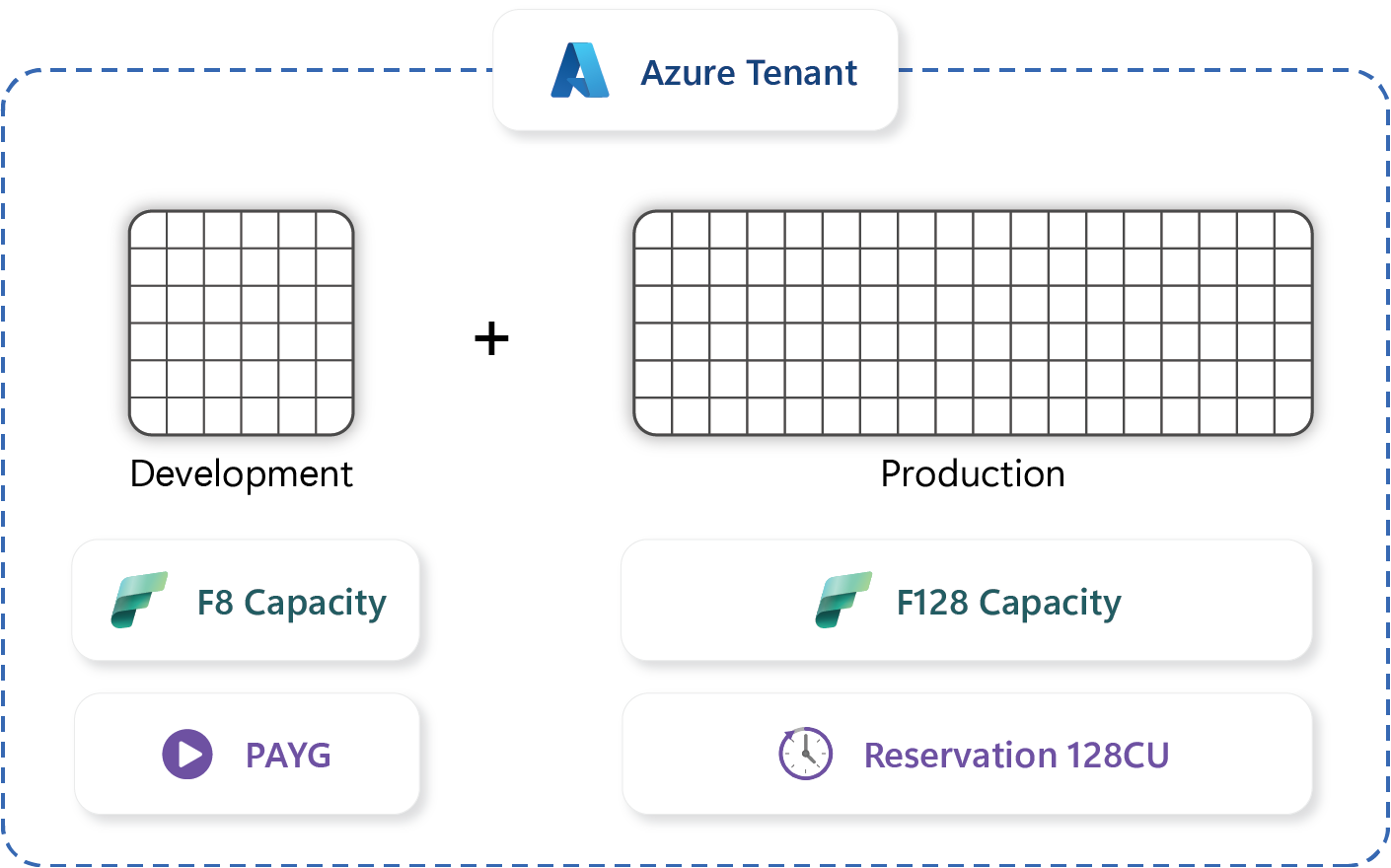
Splitting Capacity Between DEV and PROD
In this setup, production workspaces run on a Reserved Capacity. Development workspaces, on the other hand, use Pay-As-You-Go (PAYG). The benefits of this approach are:
- Keep production stable – avoid saturating your production capacity with development workloads.
- Control costs – you can better manage the expenses tied to development changes.
- Validate workloads before go-live – test how much load your changes put on the DEV capacity, so you don’t roll out an update that might “kill” PROD performance.
Another important point: in a DEV environment, you don’t need to load full production datasets. You can safely work with smaller data volumes and a smaller SKU.
Once the development work is complete, you can move the changes to PROD using Deployment Pipelines (or Azure DevOps if you’re running a more formal CI/CD process).
Splitting by Region
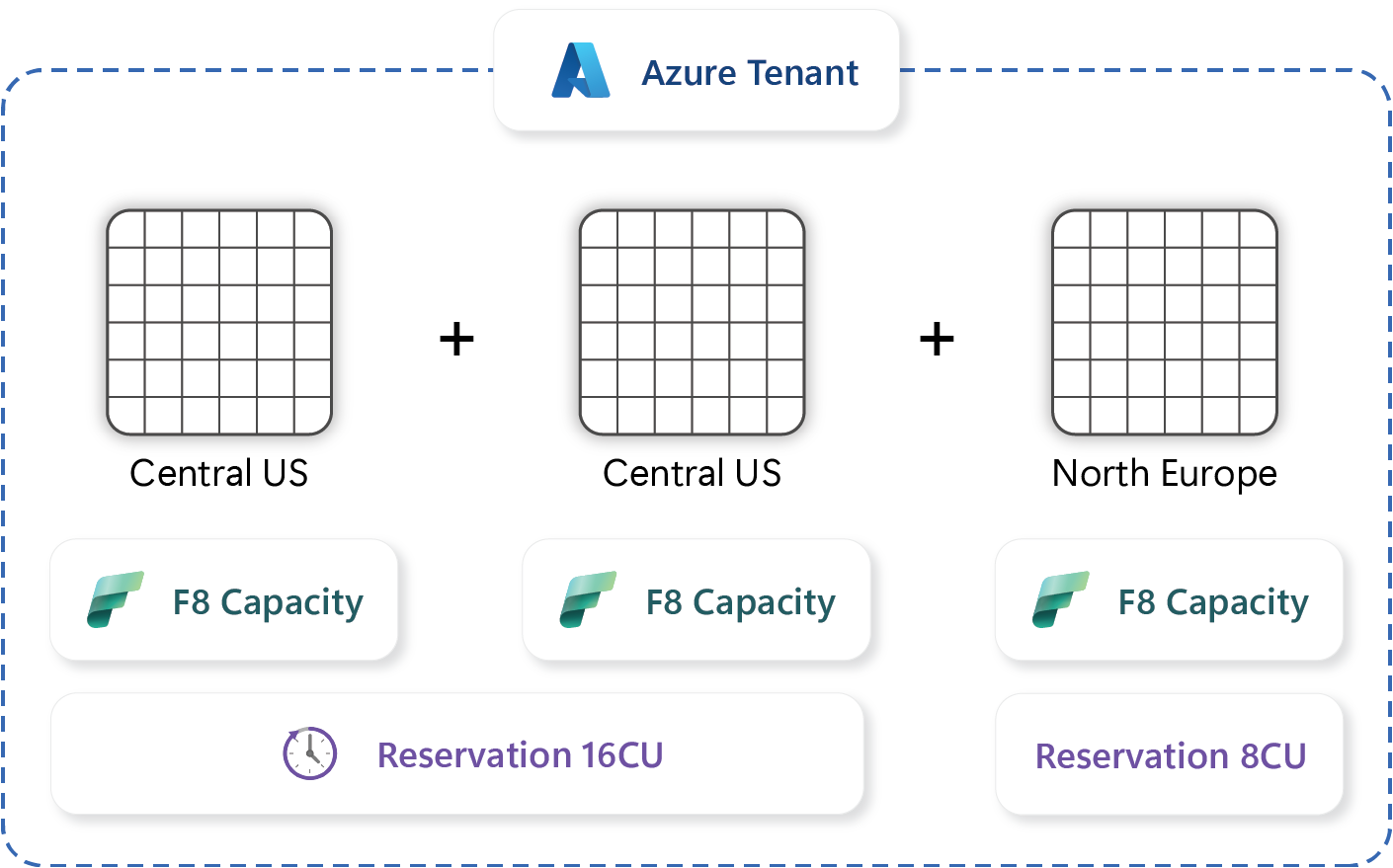
This approach is useful when you need to comply with regional data-processing regulations, such as GDPR. If your organization operates across multiple countries or even continents, running multiple capacities in different regions may be the right choice.
For example, if you have teams in both the US and Europe, you can assign their workspaces to capacities in the appropriate region to ensure that data is stored and processed in compliance with local regulations.
Keep in mind that Reservations are tied to a specific region, you can’t split a single Reservation across SKUs in different regions. Each regional capacity requires its own Reservation.
Using a Rescue Capacity
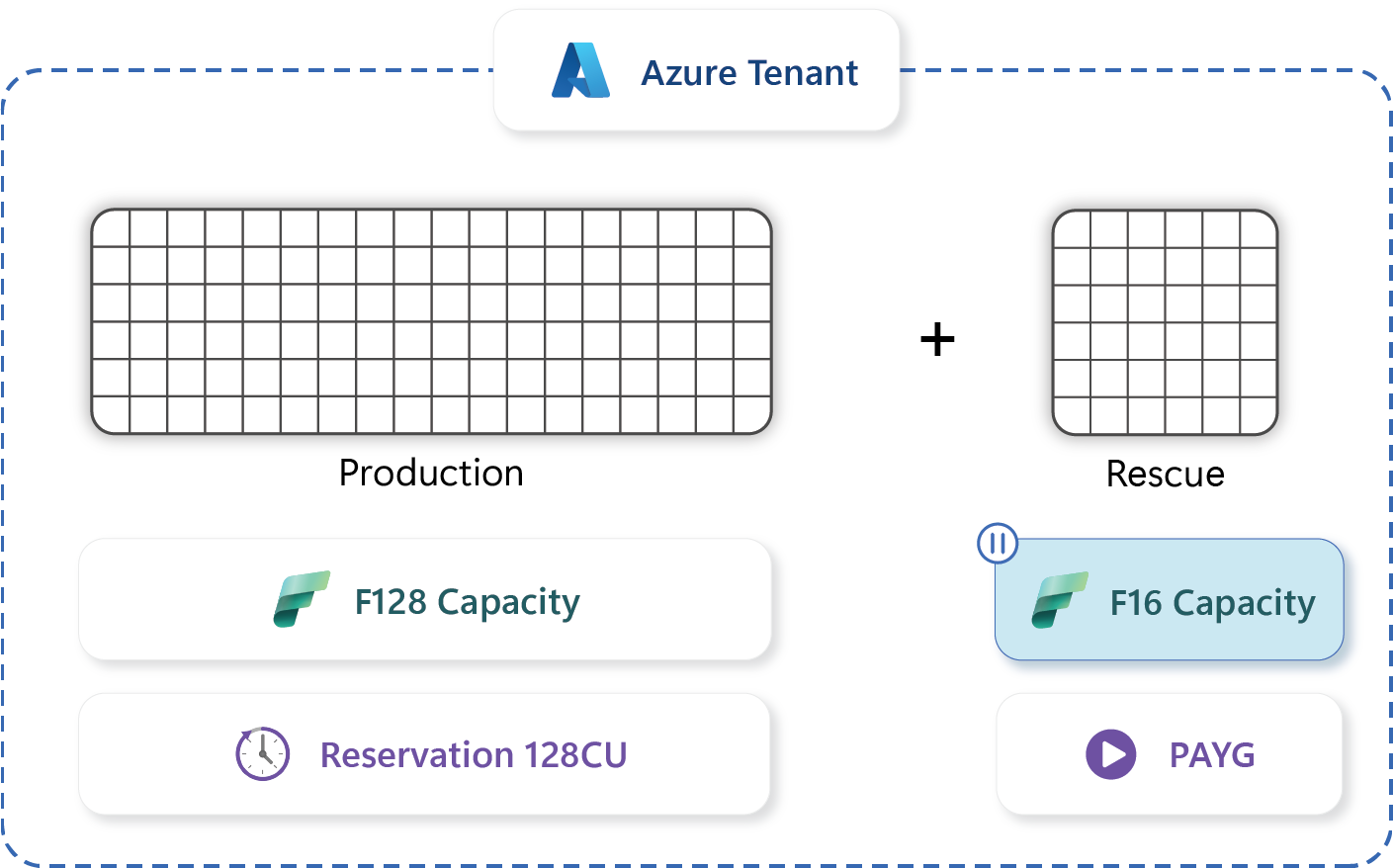
To safeguard against sudden saturation of your production Capacity under a Reservation, you can set up what’s known as a “Rescue” Capacity running in a Pay-As-You-Go (PAYG) model.
If you reach the CU limit on your PROD Capacity and can’t refresh Semantic Models or Lakehouses, you can temporarily move critical workspaces over to this PAYG Capacity. The process is simple: start the Rescue Capacity (normally kept paused) and reassign the required workspaces. Once the data processing is complete, move them back to the production Capacity.
This approach provides a safety net during overload situations without the need to scale up to a larger SKU. Keep in mind, however, that Semantic Models are still subject to SKU-specific limitations.
Limit capacity size with billing for Apache Spark
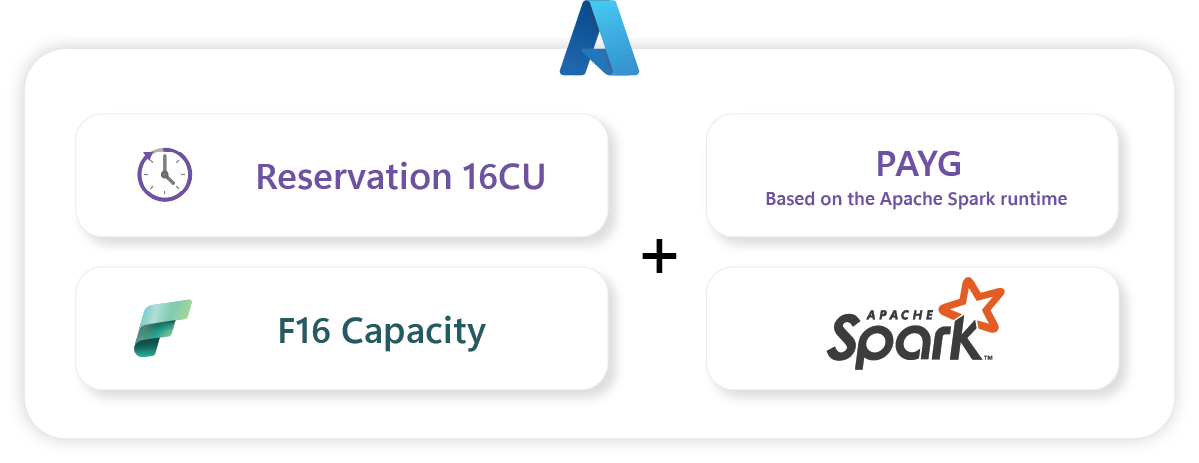
Microsoft recently introduced Autoscale billing for Apache Spark, which lets you process data (primarily through Notebooks) outside the limits of your purchased F SKU based on PAYG model.
This approach opens the door to cutting down on fixed costs. You can scale your Capacity down to a smaller SKU and only pay extra for transformations that run in your Lakehouse using the Apache Spark engine.
The catch is that you’ll need a clear picture of how much Capacity your Notebooks are consuming. Once you’ve measured that, you can run a cost estimate to see if downsizing your base Capacity and relying on Autoscale actually makes sense for your workloads.
Right-Size Your Capacity
The first thing we should tackle when optimizing costs is choosing the right Microsoft Fabric Capacity for your organization’s needs.
If you’re on a pay-as-you-go plan, you have the flexibility to scale up or down as needed, so there’s not much risk in initially over-provisioning. With Reserved Capacity, you’re committing to a fixed number of Capacity Units (CUs) for an entire year and downgrading from 64 CU to 32 CU isn’t exactly straightforward.
To make an informed decision, you can use a few different methods to estimate the right capacity size:
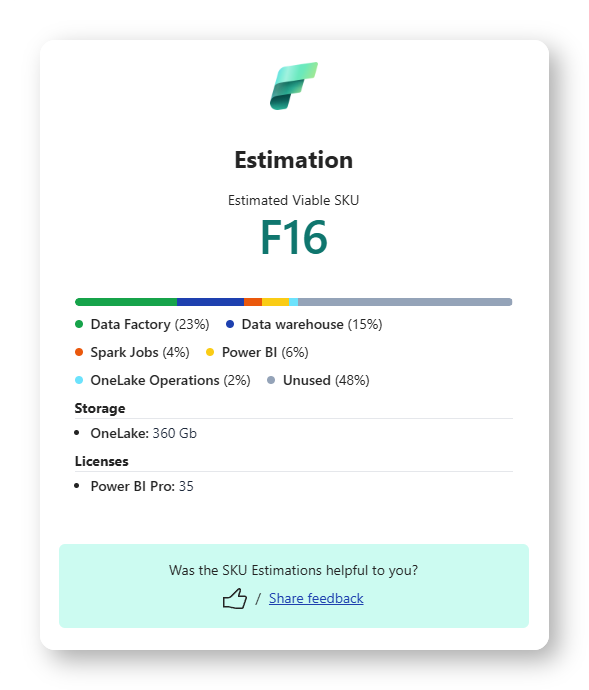
Fabric Capacity Estimator
This is an online calculator that gives you a rough sizing recommendation based on a few key inputs, like data volume, number of tables to process, selected workloads, and the number of Power BI users. It’s not perfect, but it’s a solid starting point. You can find it here.
Fabric Capacity Metrics App
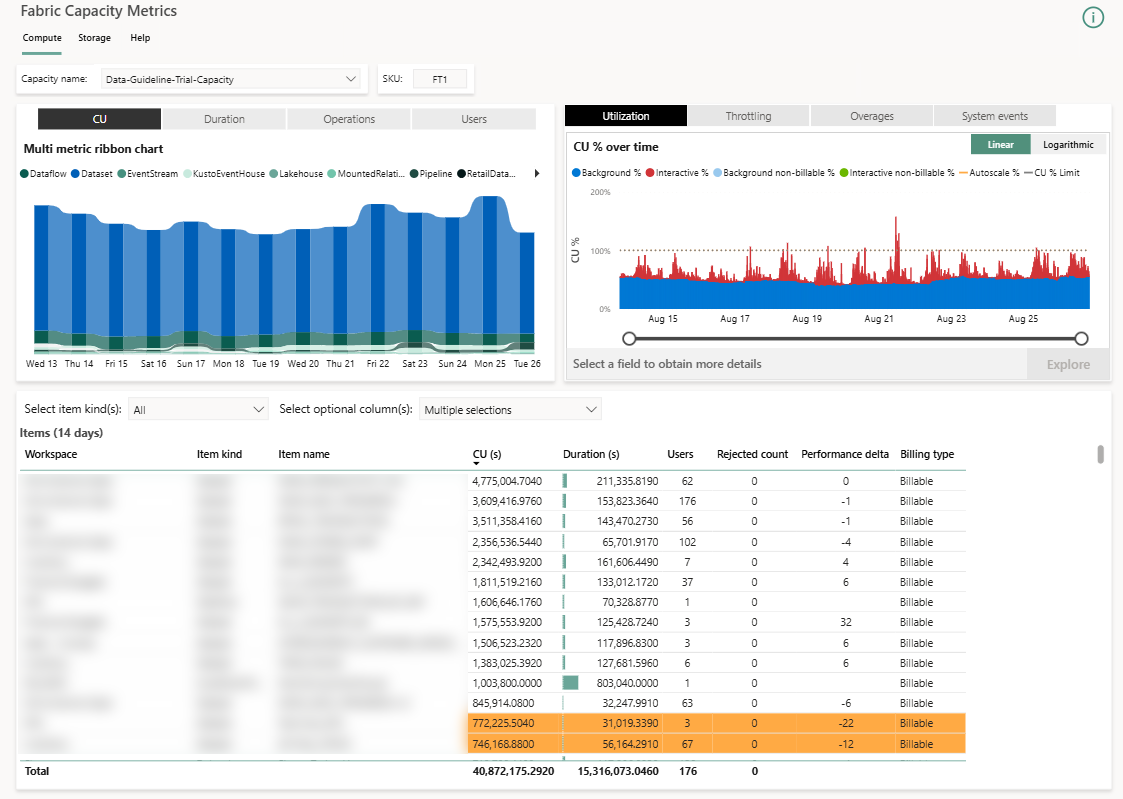
If you already have access to a Fabric environment whether it’s a Trial Capacity or a small Pay-As-You-Go SKU like F2 or F4, you can use it to simulate your full (or partial) analytics environment. Let it run for a couple of days, then check the frequency and extent to which you exceed the available CU limit. The Fabric Capacity Metrics App provides clear insights into whether you’re under or over-provisioned. This hands on approach is much more reliable for estimating real-world needs. You can install it for free following this article.
Choose the Right Region
Choosing the right region for Fabric Capacity should be dictated primarily by compliance, performance, overall cost, service availability and disaster recovery region. It’s crucial to get it right from the start.
Data Center Location and GDPR Compliance
For many organizations, especially in Europe, this is the most important factor. The General Data Protection Regulation (GDPR) has strict rules about where the personal data of EU citizens can be stored and processed. Selecting a region such as West Europe (Netherlands) or North Europe (Ireland) keeps your data securely within the EU, ensuring compliance with data residency policies.
Network Latency and Performance
Latency is the delay it takes for data to travel between your users, your data sources, and your Fabric capacity. Lower latency means faster reports and quicker data processing.
The golden rule is co-location. You should place your Fabric capacity in the same Azure region where:
- Your primary data sources reside (e.g., Azure SQL Database, Azure Data Lake Storage).
- The majority of your users are located.
- Your Azure tenant is located.
Moving data between regions can be slow and may incur extra costs. Placing Fabric Capacity close to your data and users minimizes this delay. Remember that you can have multiple Fabric Capacities in different regions. You can use online tools like AzureSpeed https://www.azurespeed.com/Azure/Latency to test latency from your location to different Azure regions.
Cost of Fabric SKU Based on Region
Not all Azure regions have the same price for Fabric SKUs. Sometimes, choosing a slightly more distant but cheaper region can be a valid trade-off if latency isn’t your top priority. below you can find a breakdown of all available regions (July 2025) sorted by PAYG (from lowest to highest price per month) for F2 SKU.
Region |
SKU |
PAYG |
Reservation |
|---|---|---|---|
Central US (Iowa) |
F2 |
🥇 $262.80 |
🥇 $156.33 |
East Asia (Hong Kong) |
F2 |
🥇 $262.80 |
🥇 $156.33 |
East US (Virginia) |
F2 |
🥇 $262.80 |
🥇 $156.33 |
East US 2 (Virginia) |
F2 |
🥇 $262.80 |
🥇 $156.33 |
North Central US (Illinois) |
F2 |
🥇 $262.80 |
🥇 $156.33 |
Sount Central US (Texas) |
F2 |
🥇 $262.80 |
🥇 $156.33 |
West US 2 (Washington) |
F2 |
🥇 $262.80 |
🥇 $156.33 |
West US 3 (Phoenix) |
F2 |
🥇 $262.80 |
🥇 $156.33 |
North Europe (Ireland) |
F2 |
🥈 $277.40 |
🥈 $165.00 |
Sweden Central |
F2 |
🥈 $277.40 |
🥈 $165.00 |
Mexico Central |
F2 |
🥈 $277.40 |
🥉 $173.67 |
Spain Central |
F2 |
🥈 $277.40 |
🥉 $173.67 |
Malaysia West |
F2 |
🥈 $277.40 |
N/A |
Canada Central |
F2 |
🥉 $292.00 |
🥉 $173.67 |
Canada East |
F2 |
🥉 $292.00 |
🥉 $173.67 |
Central India |
F2 |
🥉 $292.00 |
🥉 $173.67 |
France Central |
F2 |
🥉 $292.00 |
🥉 $173.67 |
West Central US (Wyoming) |
F2 |
🥉 $292.00 |
🥉 $173.67 |
West US (California) |
F2 |
🥉 $292.00 |
🥉 $173.67 |
Israel Central |
F2 |
🥉 $292.00 |
$182.33 |
West India |
F2 |
🥉 $292.00 |
N/A |
Australia East |
F2 |
$306.60 |
$182.33 |
Australia Southeast |
F2 |
$306.60 |
$182.33 |
Italy North |
F2 |
$306.60 |
$182.33 |
Japan East |
F2 |
$306.60 |
$182.33 |
Korea Central |
F2 |
$306.60 |
$182.33 |
UK South |
F2 |
$306.60 |
$182.33 |
UK West |
F2 |
$306.60 |
$182.33 |
Japan West |
F2 |
$306.60 |
$243.00 |
Germany West Central |
F2 |
$321.20 |
$191.00 |
Poland Central |
F2 |
$321.20 |
$191.00 |
South India |
F2 |
$321.20 |
$191.00 |
Southeast Asia (Singapore) |
F2 |
$321.20 |
$191.00 |
UAE North |
F2 |
$321.20 |
$191.00 |
West Europe (Netherlands) |
F2 |
$321.20 |
$191.00 |
New Zeland North |
F2 |
$321.20 |
N/A |
Quatar Central |
F2 |
$321.20 |
N/A |
Switzerland North |
F2 |
$335.80 |
$208.33 |
Norway East |
F2 |
$350.40 |
$208.33 |
South Africa North (Johannesburg) |
F2 |
$350.40 |
$208.33 |
France South |
F2 |
$379.60 |
N/A |
Brazil South |
F2 |
$408.80 |
$243.00 |
Germany North |
F2 |
$408.80 |
N/A |
Korea South |
F2 |
$408.80 |
N/A |
UAE Central |
F2 |
$408.80 |
N/A |
Switzerland West |
F2 |
$423.40 |
$269.17 |
South Africa West (Cape Town) |
F2 |
$452.60 |
$208.33 |
Norway West |
F2 |
$452.60 |
N/A |
More information about the pricing you can find here.
Service Availability
Microsoft typically introduces new Fabric features in major regions like East US 2 and West Europe before expanding elsewhere. If staying on the latest updates and tools is essential for your operations, it is a good way to check the Fabric products by region page first. That way, you can make sure the features you need are actually supported in your targeted region.
Disaster Recovery
For solid business continuity, it’s smart to leverage Fabric Disaster Recovery capacity setting. You can enable Microsoft Fabric to have a replica in paired region. These are essentially two locations within the same geographic area – think North Europe and West Europe – that Microsoft links specifically for disaster recovery. With Fabric, you actually get cross-region failover support, so selecting a region that’s properly paired is crucial if you’re aiming for a resilient analytics platform. Read more here.
OneLake Storage Pricing
In addition to compute (CUs), you are also billed for storage consumed within OneLake. These costs are not high compared to Capacity itself, but they should be included in the calculation. Please note that if you use BCDR (Business Continuity Disaster Recovery), i.e., the aforementioned region pairs, additional costs for OneLake will be charged.
Below prices are for North Europe.
Storage |
Price |
|---|---|
OneLake storage/month |
$0.023 per GB |
OneLake BCDR storage/month |
$0.0426 per GB |
OneLake cache/month* |
$0.24 per GB |
*OneLake cache is billed for KQL cache storage and Data Activator data retained.
Summary
Selecting the right Microsoft Fabric Capacity requires balancing workload needs, environment setup, and compliance factors rather than just comparing price tags. Organizations must consider:
- Workload patterns: steady vs. fluctuating, production vs. development.
- Deployment model: one large capacity vs. multiple
- Region: dictated by GDPR compliance, latency, disaster recovery, and service availability.
- Scalability options: flexibility with Pay-As-You-Go, long-term efficiency with Reservations, and new features like Autoscale billing for Spark.
- Required size: Fabric Estimator and Capacity Metrics App help validate CU needs before committing.
In practice, smaller organizations may start with a single capacity, while larger or global setups benefit from multi-region or hybrid (Reservation + PAYG) strategies. A free F64 trial lets teams test real workloads before choosing.